
Apollo TV: The Ultimate Guide to Free Movies and Series Streaming
Table of Contents
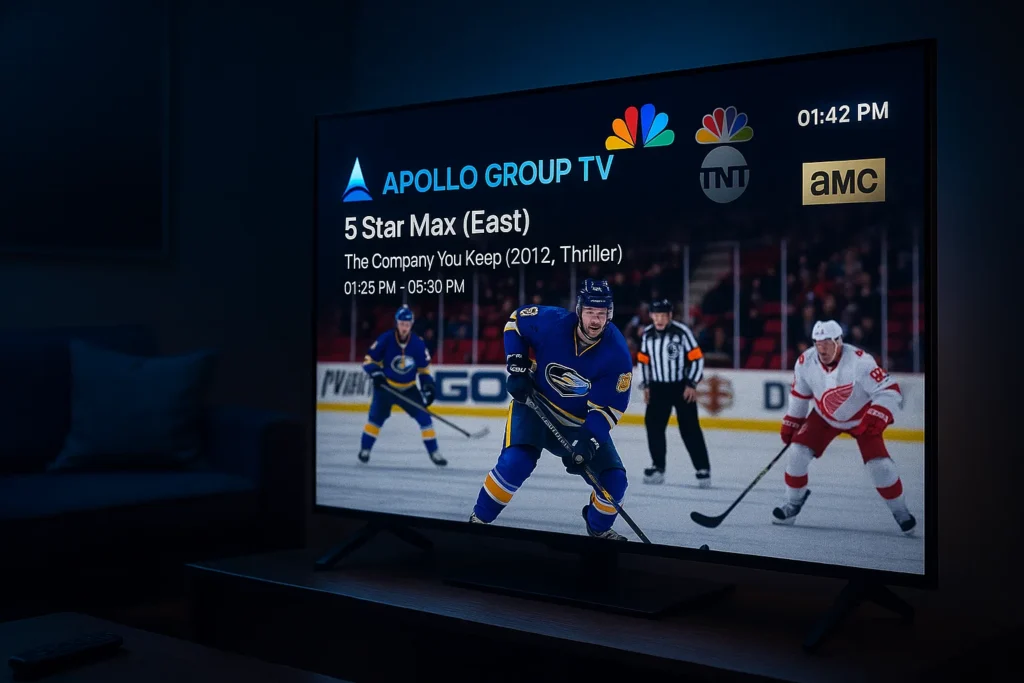
In a world where entertainment is a click away, the average person is faced with a new dilemma: how to access a seemingly endless library of films and shows without racking up a hefty monthly bill. For years, paid streaming services like Netflix, Hulu, and Amazon Prime Video dominated the market, offering convenience and a vast selection. However, with the rising cost of subscriptions and the fragmentation of exclusive content across dozens of platforms, many viewers are seeking alternatives. This search has led to a new wave of applications, and among them, Apollo TV has emerged as a formidable player.
Unlike its subscription-based counterparts, Apollo TV offers a completely free gateway to thousands of movies and TV series. It’s a game-changer for those who want a premium viewing experience without the premium price tag. But what exactly is Apollo TV, and why has it become so popular? This comprehensive guide will walk you through every aspect of the app—from its core features and installation process to advanced tips and safety precautions—ensuring you have all the information you need to make the most of this powerful streaming tool.
Core Features of Apollo TV: A Closer Look
What sets Apollo TV apart from other free streaming apps is its commitment to providing a user experience that rivals paid services. It’s not just a basic player; it’s a full-fledged entertainment hub.
Massive Content Library
The first thing you’ll notice about Apollo TV is the sheer volume of content available. The app aggregates links from various sources across the web, giving you access to a constantly updated library that includes:
- Blockbuster Movies: From recent cinema releases to timeless classics.
- Popular TV Series: All seasons and episodes of the biggest shows, often available the same day they air.
- Documentaries: A wide range of factual content covering history, science, and nature.
- Anime: A dedicated section for Japanese animation, catering to a global fanbase.
The app’s developers work hard to keep this library fresh, ensuring that there’s always something new to watch. This constant updating is a key reason why users keep coming back.
High-Quality Streaming
One of the biggest concerns with free streaming is often a poor-quality, pixelated picture. Apollo TV addresses this head-on by offering multiple streaming qualities for most titles. You can select from:
- Standard Definition (SD): Good for saving data or if your internet connection is slow.
- High Definition (HD): The most common option, providing a crisp and clear picture.
- Full HD (1080p): A stunning, high-resolution picture for an immersive viewing experience.
- 4K (Ultra HD): For those with a compatible TV and a fast internet connection, this offers the highest possible quality.
This flexibility allows you to choose the best option based on your device and network speed, ensuring a smooth and uninterrupted viewing experience.
User-Friendly Interface
A cluttered interface can ruin an app, no matter how good the content is. Apollo TV boasts a clean, intuitive design that makes navigation effortless. The main screen is divided into clear sections like “Movies,” “TV Shows,” and “Trending,” making it easy to find what you’re looking for. You can also use the powerful search function to quickly locate specific titles or actors.
Multi-Device Compatibility
Apollo TV is designed to work seamlessly across a variety of devices, making it a versatile choice for any viewer.
- Android Smartphones and Tablets: The primary platform for the app.
- Android TV Boxes: A perfect solution for turning any TV into a smart TV.
- Amazon Firestick/Fire TV: One of the most popular devices for using the app, thanks to its low cost and ease of use.
- PC/Laptop: While there isn’t an official PC version, you can run the app flawlessly using an Android emulator like BlueStacks or NoxPlayer.
This broad compatibility means you can enjoy your favorite content on the big screen in your living room or on the go with your phone.
A Step-by-Step Guide to Downloading and Installing Apollo TV
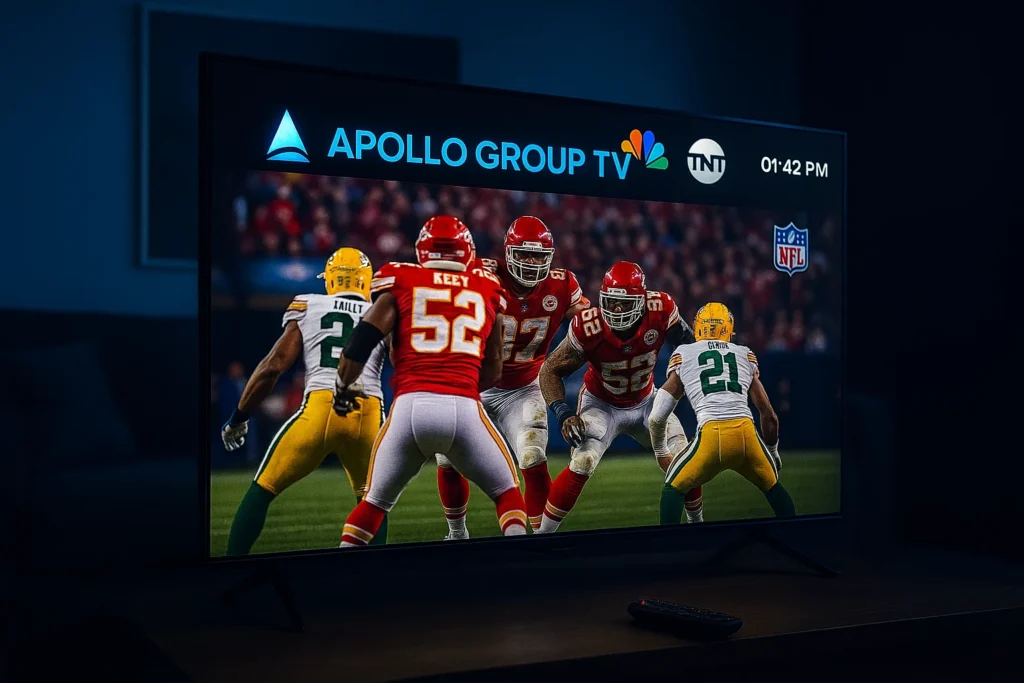
Since Apollo TV is a third-party app and not available on the Google Play Store, the installation process requires a few extra steps. It’s crucial to follow these instructions carefully to ensure a safe and successful installation.
Safety First: The Importance of APKs
Apollo TV is distributed as an APK (Android Package Kit) file. Always download the APK from a reputable source to avoid malware or viruses. The best practice is to use the official Apollo TV website or a trusted tech blog that regularly updates its download links.
Installation on Android Devices
- Enable Unknown Sources: Go to your phone’s Settings > Security (or Apps & notifications > Special access on some devices). Find the option for “Install unknown apps” or “Unknown sources” and enable it for your browser (e.g., Chrome).
- Download the APK: Use your phone’s browser to visit a trusted source and download the latest version of the Apollo TV APK file.
- Install the App: Once the download is complete, open the APK file from your notifications or the “Downloads” folder. A window will pop up asking for permission to install. Tap “Install” and wait for the process to finish.
- Open and Enjoy: After installation, you can open the app and start streaming.
Installation on Amazon Firestick/Fire TV
The Firestick is an ideal device for Apollo TV. Here’s how to get it working:
- Enable Unknown Sources: Go to Settings > My Fire TV > Developer Options. Turn on “Apps from Unknown Sources” and “ADB Debugging.”
- Install Downloader App: From the Firestick home screen, use the search function to find and install the “Downloader” app.
- Download and Install Apollo TV: Open the Downloader app and enter the URL for a trusted Apollo TV download link. Click “Go,” and the APK will download. Follow the on-screen prompts to install the app.
- Delete the APK: For better storage management, the Downloader app will prompt you to delete the APK file after installation. It’s a good practice to do so.
Mastering the App: Advanced Tips and Tricks
To get the most out of Apollo TV, you should familiarize yourself with its advanced features. These tips can significantly enhance your viewing experience.
Customizing Subtitles
Not all streaming links come with built-in subtitles. If you need to add them, Apollo TV makes it easy:
- Find the subtitle icon within the video player (it usually looks like a square with lines).
- Tap it, and the app will search for and display a list of available subtitle files.
- Select your preferred language and file, and the subtitles will sync automatically. You can also customize their size, font, and color in the settings.
Advanced Player Settings
The built-in video player is robust, but you can further optimize it. In the player settings, you can:
- Adjust brightness and volume by swiping on the screen.
- Change the aspect ratio to fit your screen.
- Enable or disable hardware acceleration for smoother playback.
External Player Integration
For those who prefer a different player, Apollo TV allows you to use external apps like VLC or MX Player. These players often have more advanced features for controlling playback, audio, and subtitles. To set this up, go to the app’s settings and select your preferred external player as the default.
Troubleshooting Common Issues (with Solutions)
Even the best apps can run into problems. Here are solutions to the most common issues you might face with Apollo TV.
“No Links Found” Error
This is a common issue when the app fails to find a working streaming source for a particular title.
- Solution: Try a different episode or a different title. The links are constantly changing, and what works today might not work tomorrow. You can also try clearing the app’s cache.
Buffering Problems
Buffering is a frustrating issue caused by a slow internet connection.
- Solution: Use a faster Wi-Fi connection, or switch to a lower streaming quality in the player settings. Closing other apps that might be using bandwidth can also help.
Installation Failed
This error usually occurs when you haven’t enabled “Unknown Sources” or if the downloaded APK file is corrupted.
- Solution: Double-check your device’s security settings. If that doesn’t work, delete the APK file and download it again from a different, trusted source.
Apollo TV vs. The Competition: A Head-to-Head Comparison
The world of free streaming apps is crowded, but Apollo TV holds its own against some of the biggest names.
Apollo TV vs. Cinema HD
- Apollo TV: Known for its clean, modern interface and well-organized content categories. It’s generally praised for fast link loading and a smooth user experience.
- Cinema HD: A long-standing favorite with a massive library. While its interface might feel a bit dated to some, its reliability and link diversity are often a plus. The choice often comes down to personal preference for the user interface.
Apollo TV vs. Stremio
- Apollo TV: Functions as a standalone app that aggregates links from different sources. It’s a simple “install and play” experience.
- Stremio: Works differently by using an add-on system. This allows for a more customizable experience, but it can be more complex to set up. Apollo TV is a better choice for those who want a straightforward, plug-and-play solution.
Is Apollo TV Safe to Use? (A Deep Dive)
This is the most critical question when using any free, third-party app. While Apollo TV itself is generally considered safe, there are some important security considerations.
The Importance of a VPN
A Virtual Private Network (VPN) is an essential tool for any user of free streaming apps. When you stream content, your internet service provider (ISP) can see your activity. A VPN encrypts your traffic and masks your IP address, ensuring your viewing habits remain private and secure. It’s not just about privacy; some ISPs may throttle your connection if they detect heavy streaming, and a VPN can prevent this.
Choosing a Reliable VPN
When choosing a VPN, look for:
- Strong encryption: AES-256 is the industry standard.
- No-logs policy: The VPN provider shouldn’t track or store your activity.
- Fast speeds: To avoid buffering while streaming in high quality.
- Server locations: More servers mean you can connect to a location with better performance.
Frequently Asked Questions (FAQs)
- Is Apollo TV illegal? Apollo TV itself is a media player, not a content host. Its legality is a gray area, as it provides links to content that may be copyrighted. Using a VPN is highly recommended to protect your privacy.
- Does Apollo TV have ads? Yes, the free version of the app contains ads. These ads are what allow the developers to keep the service free.
- How often is the content updated? The content is updated almost daily, especially with new episodes of popular TV shows and recently released movies.
Conclusion: The Future of Free Streaming
Apollo TV has cemented its place as a top-tier free streaming application. It combines a massive, constantly updated content library with a user-friendly interface and a focus on high-quality streaming. While using a VPN is a non-negotiable step for privacy and security, the benefits of the app far outweigh the minor inconvenience of a few ads.
As the cost of paid streaming services continues to rise, apps like Apollo TV will only become more vital for a large segment of the population. It represents a powerful shift in how we access entertainment, proving that quality and variety don’t have to come with a hefty price tag. Whether you’re a movie buff or a TV series binge-watcher, Apollo TV offers a compelling, free alternative that’s hard to ignore.